Your phone is acting strangely. Apps keep crashing, unfamiliar ads appear, or everything suddenly moves at the speed of a grocery checkout with one lane open. Does that mean your phone has a virus?
Not necessarily. But it does mean a little investigating is in order.
Phones can be affected by malware, which is software designed to harm your device, steal information, or perform unwanted activities. However, a slow phone or an annoying pop-up doesn’t automatically mean you’ve been infected. Software problems, limited storage, and aging hardware can also cause trouble.
2
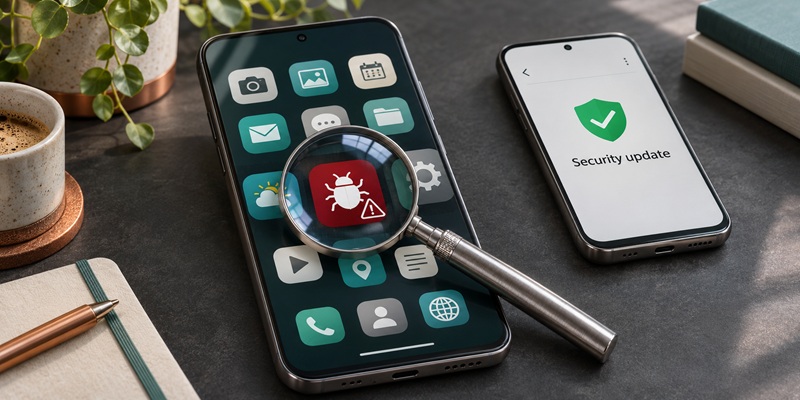
Warning signs can include unfamiliar apps, persistent advertisements, unexpected browser redirects, or messages sent from your accounts that you didn’t write. Unusual battery drain or data usage also deserves a closer look, especially if the change began after installing an app.

These are reasons to investigate, rather than proof of malware. Start by reviewing what changed shortly before the problems began. Google identifies persistent pop-ups, slow performance, unexpected redirects, and messages you didn’t send as possible warning signs.
2
A webpage suddenly announces that your phone is infected and tells you to download a cleaner, call support, or pay for protection.
Stop right there.
Apple warns that pop-ups claiming to find viruses or security problems are often fraudulent advertisements. Their purpose is to frighten you into installing software, sharing information, or handing over money.
Close the browser tab using the browser’s controls. Don’t tap buttons inside the warning, call the number, or install whatever it recommends.
2
Update your phone and apps. Install available operating-system and app updates through your device’s settings and official app store. Security updates fix weaknesses criminals may exploit. Google includes updating Android and removing untrusted apps among its recommended malware-removal steps.
Review unfamiliar apps and permissions. Remove apps you don’t recognize or trust, especially those installed around the time problems began. Be cautious about requests for powerful access, such as device administration or accessibility controls.
On an iPhone, review Settings > General > VPN & Device Management for unfamiliar configuration profiles. If your phone is managed by your employer or school, check with its IT department before removing management profiles.
On Android, check Google Play Protect. Open the Google Play Store, tap your profile icon, and select Play Protect. Keep app scanning enabled and follow any warnings. Play Protect checks for harmful apps and may warn you, disable an app, or remove it.
Address browser trouble separately. Remove notification permissions for unfamiliar websites. Clearing browser history and website data can also help with some browser-related problems, although it does not remove a malicious app or repair a compromised account. Google provides steps for stopping unwanted website notifications, and Apple explains how to clear Safari’s stored website data.
Protect accounts that may have been exposed. If you entered a password on a suspicious page or suspect it was stolen, use another device you trust to change it. Replace reused passwords, review account activity, and enable multi-factor authentication. Use strong, unique passwords rather than changing them simply because another month has passed. NIST advises against requiring routine password changes without evidence of compromise.
2
A factory reset may help resolve persistent problems, but it shouldn’t be your first response to one strange pop-up.
Before resetting, confirm that important information is backed up and that you can access the account needed to set up your phone again. A reset erases personal data and installed apps. Follow your device manufacturer’s instructions, and reinstall apps carefully so you don’t bring back the suspected culprit. Google recommends trying other troubleshooting steps before resetting.
If you’re unsure what to remove or problems continue, contact your device manufacturer, a reputable support provider, or your employer’s IT department.
2
Keep software updated, download apps from trusted sources, review permissions, and maintain backups. Treat unexpected links and urgent security warnings cautiously.
Your phone holds plenty worth protecting. A little attention now can prevent a much bigger headache later.
For banks and credit unions
Share this article with your members
Copy a ready-made summary and link for your newsletter, website or social posts.