That meeting reminder, late payment warning, or surprise prize notification popping up on your phone may not be legitimate. With the holiday season here, your calendar may already be crowded. Scammers are hoping you won’t notice a few extra entries.
Criminals can use calendar invitations and automatic event processing to put suspicious messages among your legitimate appointments. Here are three calendar scams to watch for.
2
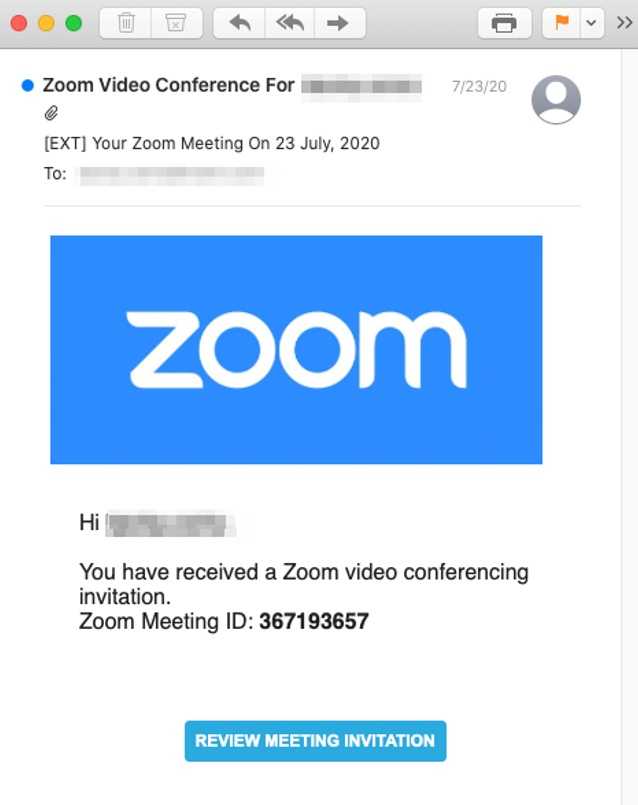
You receive an unexpected invitation for a Microsoft Teams or Zoom meeting. It might appear to come from your employer, a business contact, or another familiar organization. The invitation includes a link to join, review a document, or sign in.
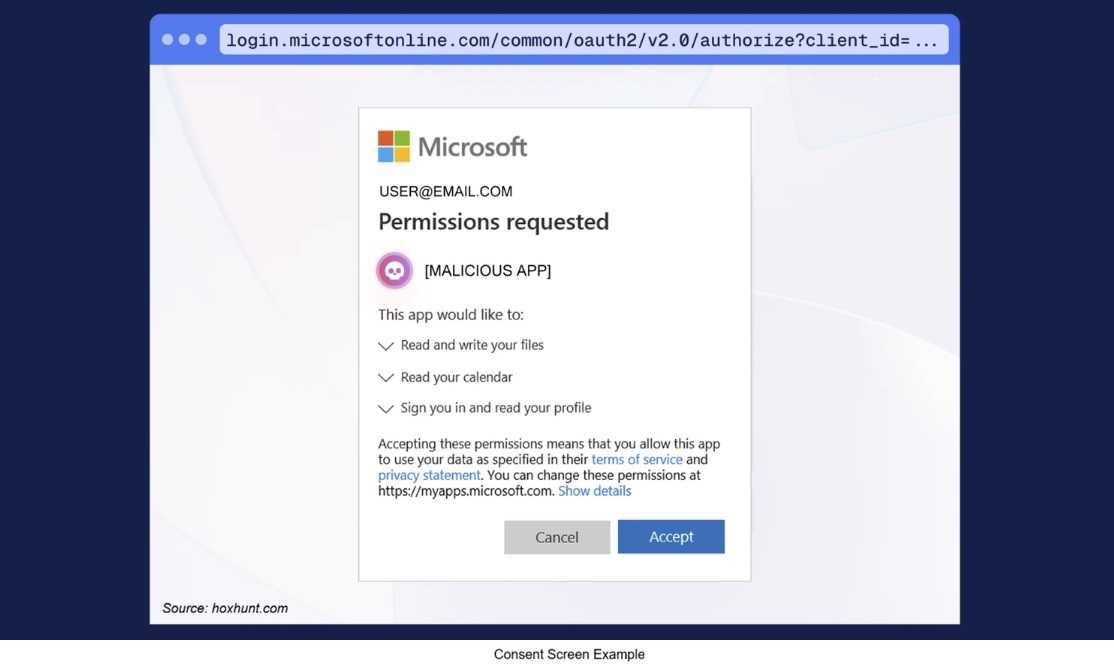
The catch? The link leads to a fake login page designed to steal your username, password, or authentication information. Security researchers have documented campaigns using calendar invitations to deliver phishing links and trick people into authorizing account access.

2
Suddenly, your calendar is filling up with alarming messages: Your phone has a virus! Your subscription is expiring! You’ve won a prize!
You may have accidentally subscribed to a spam calendar after tapping a pop-up or misleading website prompt. Closing the website doesn’t cancel that subscription, so the unwanted events and notifications can continue.
The goal is to frighten or tempt you into clicking a link, calling a fake support number, or downloading something you shouldn’t.
2
An event appears claiming that a payment has been processed, a subscription is renewing, or your account needs immediate attention. It may include a familiar company name, a dollar amount, and a phone number to call if you don’t recognize the charge.
Don’t call! The number may connect you to a fake support representative who will try to obtain personal information, payment details, or remote access to your device. The FTC warns that fake renewal notices can lead to precisely this kind of scam.
2
-
Verify unexpected invitations. Contact the sender through a separate, known contact method before interacting with the invitation.
-
Avoid unfamiliar links and QR codes. Their appearance inside a calendar event doesn’t make them trustworthy.
-
Ignore suspicious phone numbers. Contact the company through its official app, website, or a number on a statement you already trust.
-
Report suspicious events. Use your calendar provider’s spam or junk reporting feature when available.
2
Deleting individual events may leave the underlying subscription in place. Remove the unfamiliar calendar itself to stop its events from returning.
On an iPhone, open the Calendar app > Calendars, tap the information button beside the unfamiliar calendar, and choose Unsubscribe or Delete Calendar. Apple also provides Report Junk for eligible invitations from unknown contacts.
For Google Calendar on a computer, open Settings, select the unfamiliar calendar in the left column, and choose Remove calendar > Unsubscribe. Menu names and available options can vary by device, account, and software version. Use your provider’s official help instructions if your screen looks different.
2
In Google Calendar on a computer, go to Settings > Event settings > Add invitations to my calendar. Consider Only if the sender is known or When I respond to the invitation in email. Work or school administrators may control which options are available.
Invitation settings are separate from features that create events from email confirmations. Review both if unwanted items keep appearing.
Remember, simply receiving a suspicious invitation does not mean your device has been compromised. The danger usually begins when you follow its instructions, sign in, authorize access, or download something.
Your calendar is supposed to keep your life organized, not organize a meeting between you and a scammer!
For banks and credit unions
Share this article with your members
Copy a ready-made summary and link for your newsletter, website or social posts.